Minimalist Infographic
Instructions
Design an **Infographic** to explain [Topic & Content] to [Target Audience: e.g., "non-specialist managers / general public / junior engineers"], rendered in a **clean, clear, pleasing, and visually quiet** style.
### 1) Information Structure & Hierarchy (Emphasis & Hierarchy)
- **Top:** A **main headline** (one sentence summarizing the key takeaway), followed by a **subheadline** (providing context, scope, or date).
- **Middle:** Feature **one critical number or conclusion** as the visual anchor (largest font size / largest block)—the viewer should instantly know what matters most.
- **Bottom:** Break content into **3–5 modules** (each with a sub-header + 2–3 bullet points, kept as short as possible).
- Establish clear hierarchy through **font size / weight / whitespace / positioning**: Headline > Key Conclusion > Module Headers > Body Points.
### 2) Scale & Proportion
- The key conclusion block should be noticeably larger; other modules decrease in size by importance.
- Balance graphics and text proportionally—avoid making all elements the same size, which creates "no focal point."
- Use a grid system (e.g., 12-column grid) with consistent spacing to achieve visual harmony.
### 3) Contrast Without Excess
- Use only **one high-contrast accent color** to highlight "key conclusions / critical paths / CTA-style labels"; keep all other colors low-saturation and softly neutral.
- Create contrast through *difference*, not *loudness*: size contrast, weight contrast, value contrast, shape contrast.
- Avoid multiple high-contrast elements competing simultaneously—this creates visual noise and chaos.
### 4) Repetition & Pattern
- Apply a unified card style across all modules: same border radius, margins, header styling, and icon treatment.
- Icons should share consistent stroke width and style (choose either line or flat, not both); maintain uniform layout within modules (icons consistently left or top).
- Use repetition to establish order and scannability.
### 5) Balance, Alignment & Whitespace
- Leave ample whitespace—let the information breathe; don't fill every inch.
- Align rigorously: baseline-align headlines, edge-align cards, left-align body text, and adhere to the grid throughout.
- Balance visual weight: pair heavy information blocks with lighter elements (thin rules, muted annotations) to counterbalance.
### 6) Movement & Visual Flow
- Organize content along a **clear reading path**—top-to-bottom or left-to-right (e.g., numbered steps 1→2→3, subtle arrows, progressive sizing).
- Rhythm comes from *intentional repetition and spacing*, not flashy effects; guide the eye naturally through the composition.
### 7) Typography & Readability
- Limit to **2 font styles max** (or different weights of a single typeface); avoid decorative fonts.
- Body text should be large enough with comfortable line spacing; keep each point to 1.5 lines or less (favor brevity).
- If technical terms are unavoidable, include a one-line plain-language explanation or annotation.
### 8) Output Specs (adjust as needed)
- **Canvas:** [Aspect ratio 16:9 ], Resolution: 1K
- **Style:** Modern minimalist, fresh, lightweight, vector-like aesthetic; subtle or no shadows; avoid heavy gradients and intricate textures.
- **Background:** Solid color or very light tint—should never compete with the content.
**Negative Constraints:**
No cramped layouts • No more than 1 accent color • No multiple high-contrast blocks fighting for attention • No decorative patterns or noise textures • No more than 2 typefaces • No equal visual weight across all modules • No misalignment.
**Topic & Content:**
ask user to provide so you can analyze
---
You don't need to ask user the target audience, the goal of this infographic is to help user to learn a subject fast and great.
Description
Recommended by
nene@YouMind
Why we love this skill
Craft stunning, minimalist infographics that make complex information immediately understandable. This skill excels at distilling any topic into a visually quiet, yet impactful design, perfect for quickly educating a target audience. Highlight key takeaways with a single accent color and clear hierarchy, ensuring effortless comprehension.
Turn any complex content into crystal-clear infographics. Design like a pro, ensuring your message is visually quiet yet powerfully impactful, guiding your audience effortlessly.
Related Skills
View all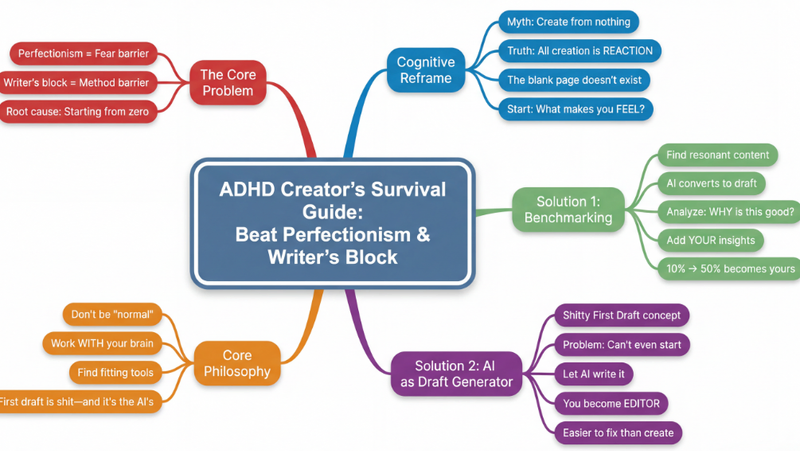 Research
Mind map
Transform any complex content—articles, videos, PDFs—into crystal-clear, hierarchical mind maps. Instantly visualize information, grasp core concepts, and accelerate your learning without effort.
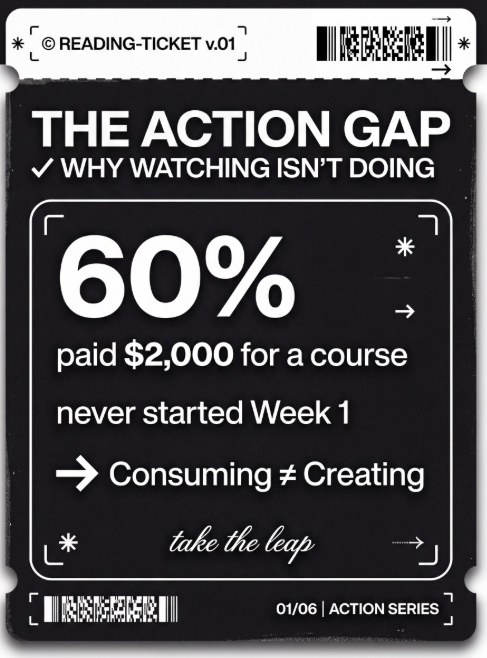 Image
ImageTicket style infographic
Turn your key points into minimalist ticket-style cards. Perfect for personal branding, changelogs, book takeaways, and "top 5" lists.
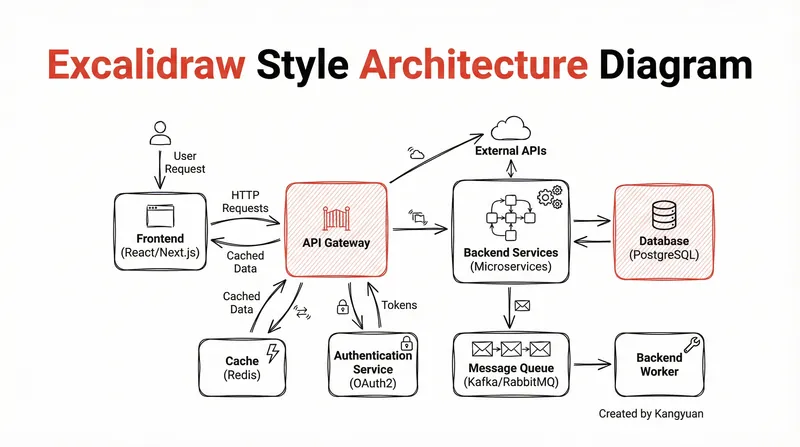 Image
ImageExcalidraw-style diagram
Transform complex system designs into clear, hand-drawn Excalidraw diagrams. Visualize your architecture with minimalist elegance, making intricate connections instantly understandable and professionally presented.
Minimalist Infographic
Instructions
Design an **Infographic** to explain [Topic & Content] to [Target Audience: e.g., "non-specialist managers / general public / junior engineers"], rendered in a **clean, clear, pleasing, and visually quiet** style.
### 1) Information Structure & Hierarchy (Emphasis & Hierarchy)
- **Top:** A **main headline** (one sentence summarizing the key takeaway), followed by a **subheadline** (providing context, scope, or date).
- **Middle:** Feature **one critical number or conclusion** as the visual anchor (largest font size / largest block)—the viewer should instantly know what matters most.
- **Bottom:** Break content into **3–5 modules** (each with a sub-header + 2–3 bullet points, kept as short as possible).
- Establish clear hierarchy through **font size / weight / whitespace / positioning**: Headline > Key Conclusion > Module Headers > Body Points.
### 2) Scale & Proportion
- The key conclusion block should be noticeably larger; other modules decrease in size by importance.
- Balance graphics and text proportionally—avoid making all elements the same size, which creates "no focal point."
- Use a grid system (e.g., 12-column grid) with consistent spacing to achieve visual harmony.
### 3) Contrast Without Excess
- Use only **one high-contrast accent color** to highlight "key conclusions / critical paths / CTA-style labels"; keep all other colors low-saturation and softly neutral.
- Create contrast through *difference*, not *loudness*: size contrast, weight contrast, value contrast, shape contrast.
- Avoid multiple high-contrast elements competing simultaneously—this creates visual noise and chaos.
### 4) Repetition & Pattern
- Apply a unified card style across all modules: same border radius, margins, header styling, and icon treatment.
- Icons should share consistent stroke width and style (choose either line or flat, not both); maintain uniform layout within modules (icons consistently left or top).
- Use repetition to establish order and scannability.
### 5) Balance, Alignment & Whitespace
- Leave ample whitespace—let the information breathe; don't fill every inch.
- Align rigorously: baseline-align headlines, edge-align cards, left-align body text, and adhere to the grid throughout.
- Balance visual weight: pair heavy information blocks with lighter elements (thin rules, muted annotations) to counterbalance.
### 6) Movement & Visual Flow
- Organize content along a **clear reading path**—top-to-bottom or left-to-right (e.g., numbered steps 1→2→3, subtle arrows, progressive sizing).
- Rhythm comes from *intentional repetition and spacing*, not flashy effects; guide the eye naturally through the composition.
### 7) Typography & Readability
- Limit to **2 font styles max** (or different weights of a single typeface); avoid decorative fonts.
- Body text should be large enough with comfortable line spacing; keep each point to 1.5 lines or less (favor brevity).
- If technical terms are unavoidable, include a one-line plain-language explanation or annotation.
### 8) Output Specs (adjust as needed)
- **Canvas:** [Aspect ratio 16:9 ], Resolution: 1K
- **Style:** Modern minimalist, fresh, lightweight, vector-like aesthetic; subtle or no shadows; avoid heavy gradients and intricate textures.
- **Background:** Solid color or very light tint—should never compete with the content.
**Negative Constraints:**
No cramped layouts • No more than 1 accent color • No multiple high-contrast blocks fighting for attention • No decorative patterns or noise textures • No more than 2 typefaces • No equal visual weight across all modules • No misalignment.
**Topic & Content:**
ask user to provide so you can analyze
---
You don't need to ask user the target audience, the goal of this infographic is to help user to learn a subject fast and great.
Description
Recommended by
nene@YouMind
Why we love this skill
Craft stunning, minimalist infographics that make complex information immediately understandable. This skill excels at distilling any topic into a visually quiet, yet impactful design, perfect for quickly educating a target audience. Highlight key takeaways with a single accent color and clear hierarchy, ensuring effortless comprehension.
Turn any complex content into crystal-clear infographics. Design like a pro, ensuring your message is visually quiet yet powerfully impactful, guiding your audience effortlessly.
Related Skills
View allResearchMind map
Transform any complex content—articles, videos, PDFs—into crystal-clear, hierarchical mind maps. Instantly visualize information, grasp core concepts, and accelerate your learning without effort.
ImageTicket style infographic
Turn your key points into minimalist ticket-style cards. Perfect for personal branding, changelogs, book takeaways, and "top 5" lists.
ImageExcalidraw-style diagram
Transform complex system designs into clear, hand-drawn Excalidraw diagrams. Visualize your architecture with minimalist elegance, making intricate connections instantly understandable and professionally presented.
Find your next favorite skill
Explore more curated AI skills for research, creation, and everyday work.